
Step 3 – Category Selection
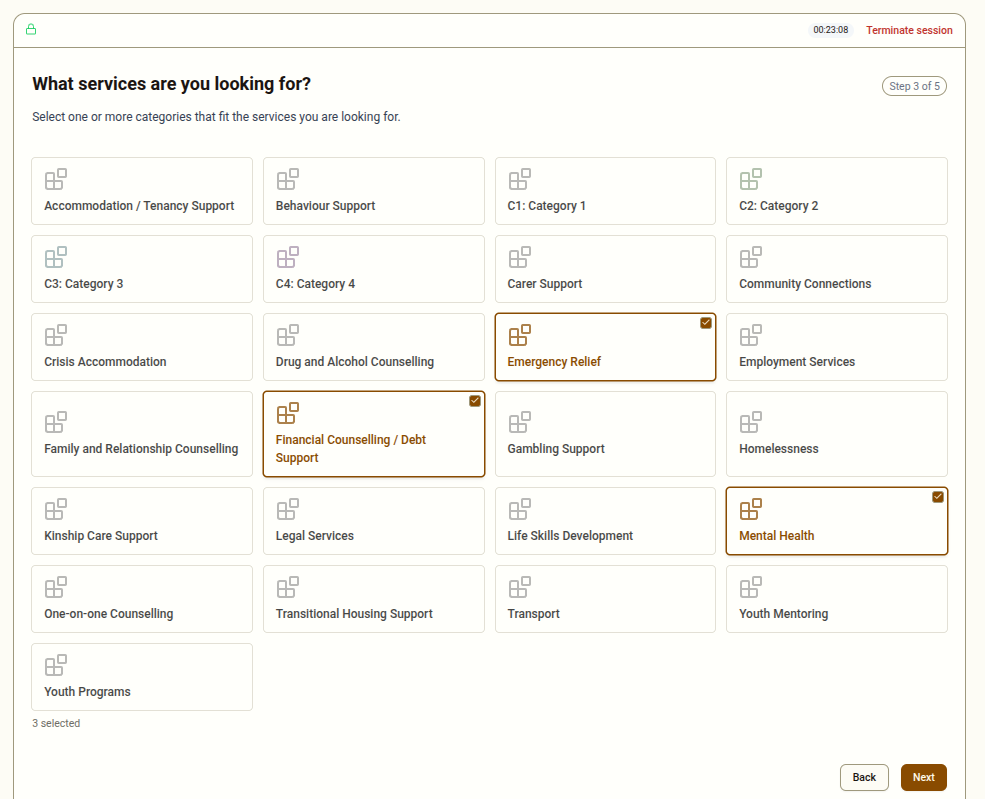
Step 3 displays all available service categories as clickable cards. The client selects the types of services they are interested in. This selection further filters the listings shown in Step 4.
How It Works
Section titled “How It Works”- Each category appears as a coloured card with the category name
- The client can select as many categories as they like
- A selected category card changes appearance to show it is active
- A count of how many categories are selected is shown at the top of the screen
- Clicking a selected card again will deselect it
Tips for This Step
Section titled “Tips for This Step”- Go through the categories with the client and explain what each one covers if needed
- Encourage the client to select all categories that are relevant — selecting more categories will show more services
- If the client is unsure about a category, it is better to include it than to miss a relevant service
- At least one category must be selected before you can proceed
If No Categories Seem Relevant
Section titled “If No Categories Seem Relevant”If none of the categories match what the client is looking for, it may mean the system does not currently have listings in that area. Select the most closely related category and proceed — the system will show what is available. If no listings are found, a fallback provider with general contact information will be displayed.