
Managing Appointment Slots
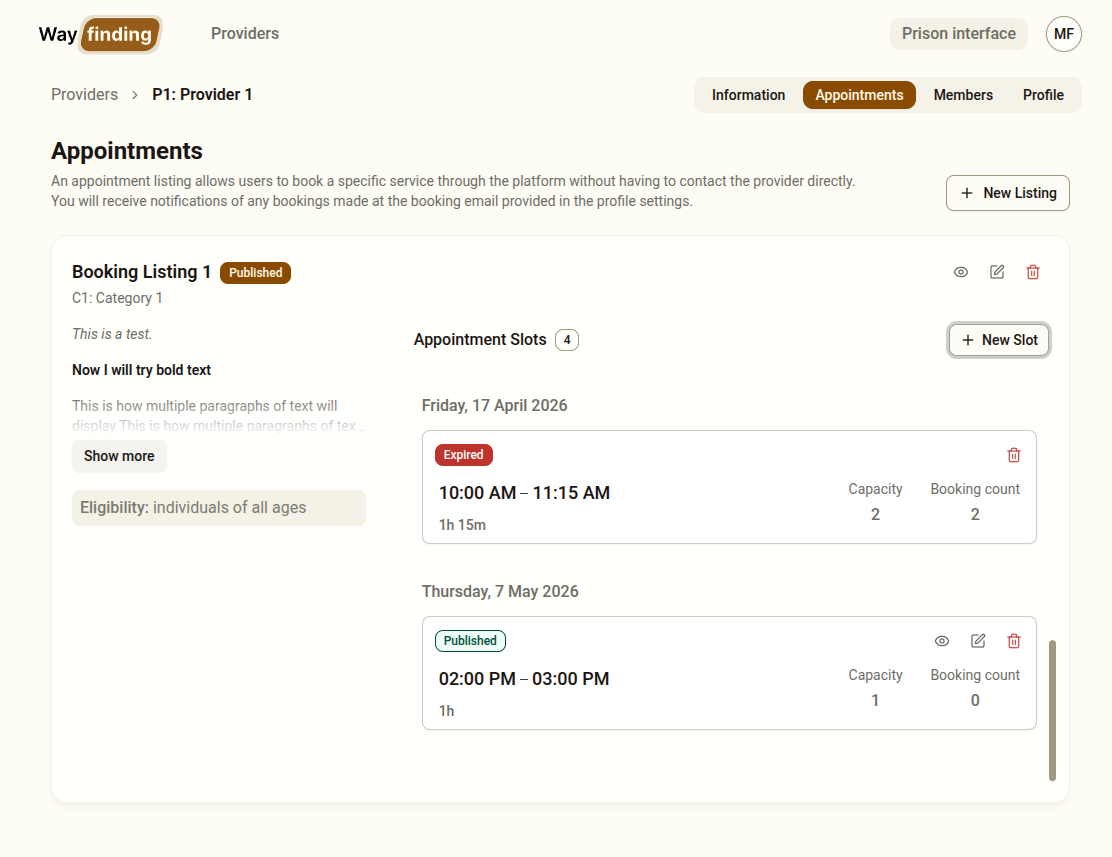
Appointment slots are the specific dates and times that clients can select when booking a service during a session. Slots belong to booking listings.
Adding a Slot
Section titled “Adding a Slot”- Go to your provider and click the Appointments tab
- Click on a booking listing to view its slots
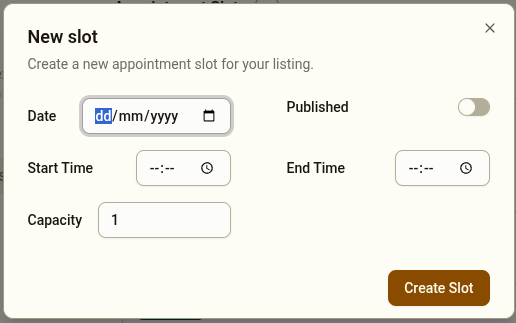
- Click New Slot
- Select the date and start/end time for the appointment
- Set the capacity for this appointment
- Click Create Slot
Slot capacity
Section titled “Slot capacity”By default every appointment slot has a capacity of one. However, service providers may prefer to attend to multiple clients at an appointment at the same time. Where this is the case the capacity for a slot can be increased. The slot will be displayed on the Prison Interface until the capacity is filled.
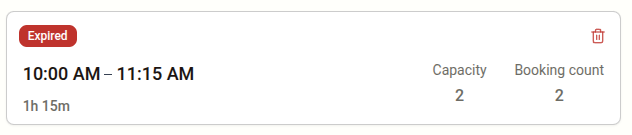
Each slot card shows its capacity and the number of bookings that have been made against it (the Booking Count)
Publishing Slots
Section titled “Publishing Slots”Like Information and Booking listings, Appointments slots must be published before they appear on the Prisons Interface
Removing a Slot
Section titled “Removing a Slot”Click the remove option next to a slot. The slot is immediately removed and will no longer be shown to clients.
Expired Slots
Section titled “Expired Slots”Slots expire when their start date is in the past. Expired slots are not automatically deleted from a booking listing. This is for reporting and audit purposes (eg: you may want a record of how many clients booked into past slots).
You do however have the ability to delete expired slots should you wish to do so. Click on the delete icon on the slot card to delete the slot.
Recurring Slots
Section titled “Recurring Slots”This app does not provide for recurring slots (eg: weekly appointments). Each appointment slot must be created manually.
When All Slots Are Booked
Section titled “When All Slots Are Booked”Once every slot in a booking listing has been selected by a client during a session, no slots will appear for that listing. To make the listing available again:
- Add new slots for future dates
- Or coordinate with your organisation about availability and update accordingly
Coordinating With Your Organisation
Section titled “Coordinating With Your Organisation”Appointment slots in the Wayfinding App should reflect real availability from your organisation. Before adding slots:
- Confirm the appointment time with the relevant staff member or team
- Check room or resource availability if applicable
- Ensure someone in your organisation will receive the booking confirmation email and can follow through on the appointment