
Managing Providers
Providers are the organisations that offer services to clients. Each provider can have multiple listings (information and booking) and multiple staff members who manage them.
Creating a Provider
Section titled “Creating a Provider”- Click Add Provider at the top of the Providers page
- A dialog will open. Fill in:
- Provider name — your organisation’s name as it should appear to clients
- Description — a brief summary of your organisation and what it does
- Booking Email - this is the email address that appointment emails will be sent to
- Contact Email - this is your organisation’s general contact email address. This will be displayed in Information Listings
- Phone number — the main contact phone number
- Address — your organisation’s street address
- Click Create Provider to create the provider
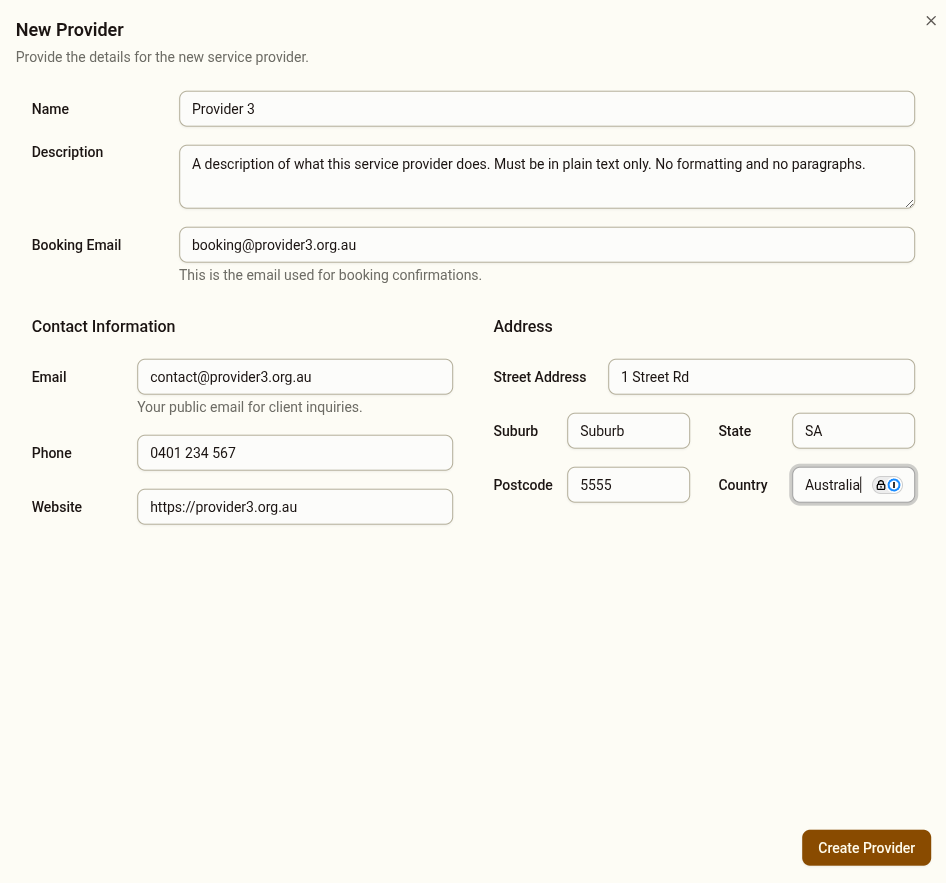
The provider will appear in the grid immediately and will be available for listings to be added.
Editing a Provider
Section titled “Editing a Provider”Click on a provider card to open the provider detail view, then select the Profile tab. Edit any of the provider’s details and save.
The Fallback Provider
Section titled “The Fallback Provider”The fallback provider is a special provider shown to clients in Step 4 of the Prison Interface.
The fallback provider is always shown as the last Information Listing for a client to select. It appears even when the system finds no other suitable listings. It is there so the client can ‘fall back’ onto that provider if they cannot find any other services to help them.
The system allows for one fallback provider to be set. The fallback provider must be a service provider in the system.
As the fallback provider is an existing provider, the fallback provider may contain Information and Booking Listings. If it does, these are dealt with and displayed in the normal way in the Prisons Interface, and the fallback provider’s details are repeated at the bottom of the Step 4 screen.
Setting or changing the fallback provider
Section titled “Setting or changing the fallback provider”To set or change the fallback provider:
- Go to the Providers page
- Find the Fallback Provider tile (separate from the main provider grid)
- Click to select or change the fallback provider

Deleting a Provider
Section titled “Deleting a Provider”To delete a provider you must:
- Delete all of its Information Listings
- Delete all of its Booking Listings
Once all listings are deleted, return to the Providers section and delete the provider using the delete icon on its card.