
Managing Provider Members
Members are users who have been given access to manage a specific provider. A provider member can edit the provider’s listings and appointment slots, but only for the providers they are assigned to.
Viewing Provider Members
Section titled “Viewing Provider Members”- Go to Providers in the sidebar
- Click on a provider card
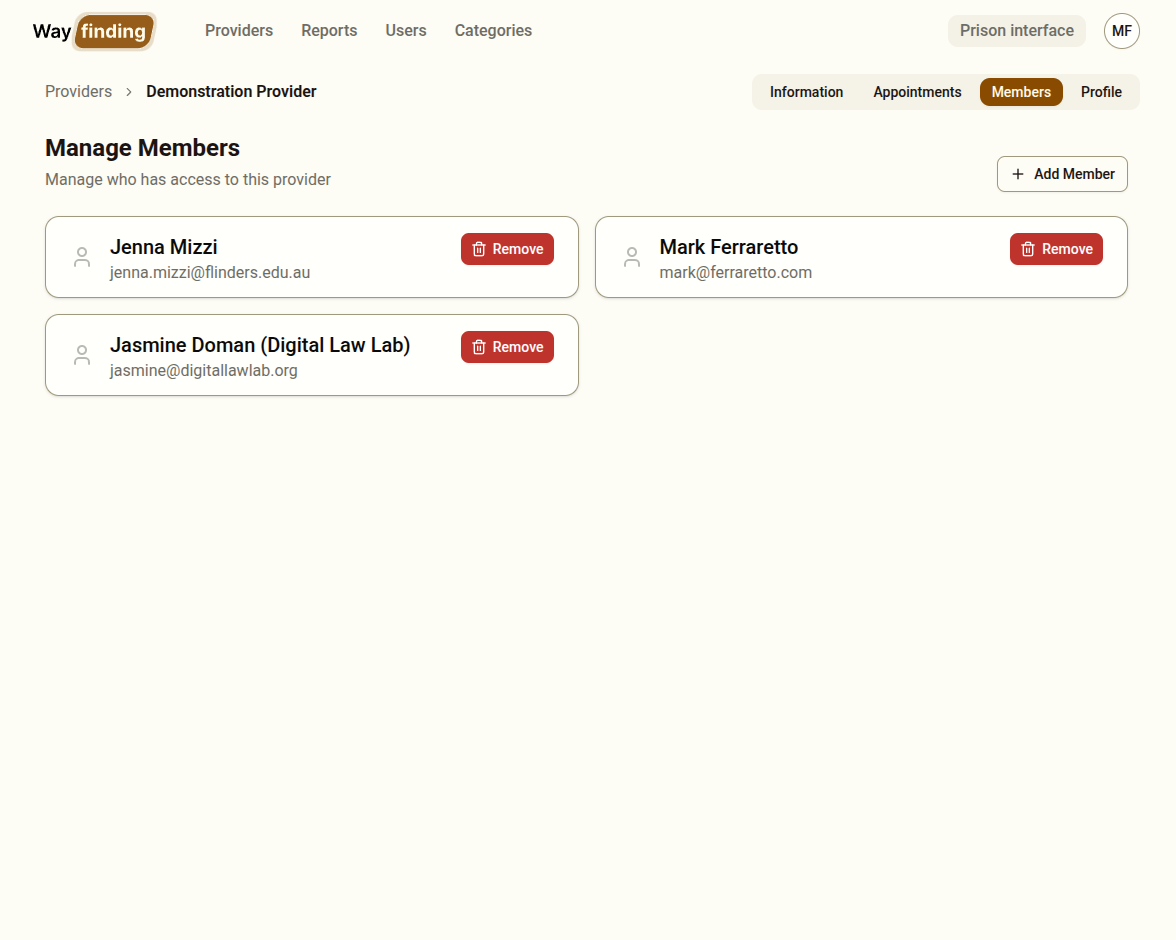
- Go to the Members tab
You will see a list of all users currently assigned to this provider.
Adding a Member
Section titled “Adding a Member”- On the Members tab, click Add Member
- A dialog will appear with a list of users in the system
- Select the user you want to add
- Click Save
The user will now be able to see and manage this provider when they log in to the dashboard.
Removing a Member
Section titled “Removing a Member”Click the remove option next to a member’s name on the Members tab. The user will immediately lose access to manage that provider. They will still have their dashboard account and access to any other providers they are members of.
What Members Can and Cannot Do
Section titled “What Members Can and Cannot Do”Members assigned to a provider can:
- Create, edit, and delete information listings
- Create, edit, and delete booking listings
- Add and remove appointment slots
- View other members of the provider
- View the provider’s profile
Members cannot:
- Edit the provider profile (name, contact details, description)
- Add or remove other members (only administrators can do this)
- Access other providers they have not been assigned to
- Access categories, users, or reports
Multiple Provider Assignments
Section titled “Multiple Provider Assignments”A single user can be a member of more than one provider. When they log in, they will see all providers they are assigned to and can manage each one.