
Managing Listings
Listings are how your organisation’s services appear to clients during a session. You can create two types: information listings for contact-only services, and booking listings for services where clients can reserve an appointment slot.
Information Listings
Section titled “Information Listings”Information listings display details about a service and contact information. No appointment booking is involved. The client simply takes the contact details with them on their printout.
Creating a New Information Listing
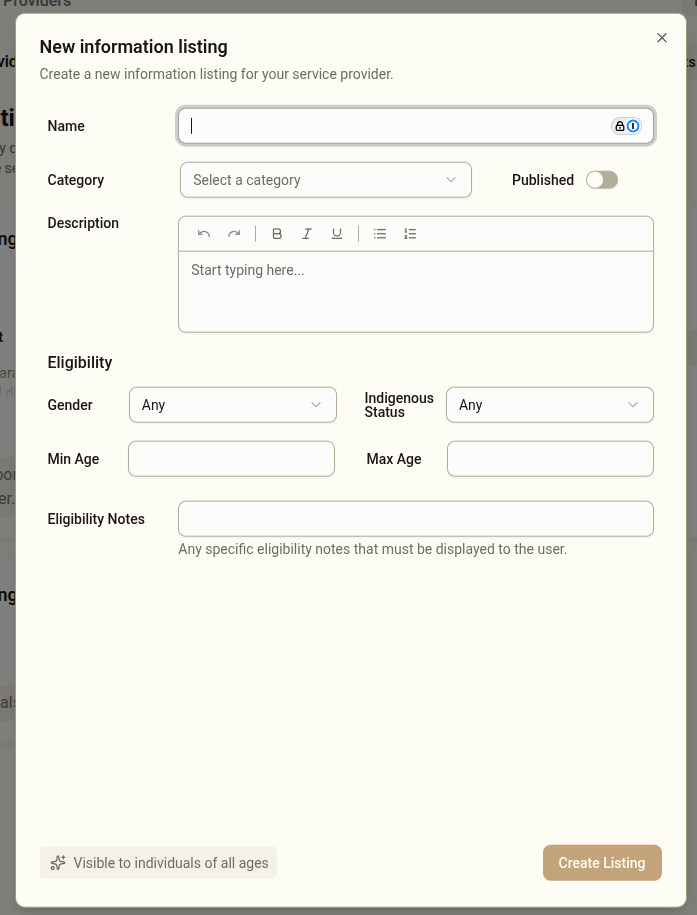
Section titled “Creating a New Information Listing”- Go to your provider and click the Information Listings tab
- Click New Listing
- Fill in the listing details:
- Name — the name of the service, as it should appear to clients
- Description — a clear description of what the service offers and how it can help
- Eligibility notes — any specific requirements clients must meet to access this service
- Set eligibility filters if the service is not available to all clients:
- Gender — select a specific gender, or leave open for all
- Age range — set minimum and/or maximum age, or leave open
- Indigenous status — restrict to specific status, or leave open
- Click Create Listing
Notes on Eligibility Criteria
Section titled “Notes on Eligibility Criteria”| Criterion | Notes |
|---|---|
| Gender | Selecting Male or Female will display this listing only to those clients who select Male or Female in the Prisons Interface. Selecting Any will display this listing to clients regardless of which gender they select. |
| Indigenous Status | Selecting Aboriginal or Torres Strait Islander will display this listing to clients who select Aboriginal or Torres Strait Islander and will not display it to clients who select Non-Indigenous. However, it will display this listing to clients who select Prefer not to say. Selecting Non-Indigenous will display this listing to clients who select Non-Indigenous or Prefer not to say but not to Aboriginal and Torres Strait Islander clients. Selecting Any will display this listing to all clients. |
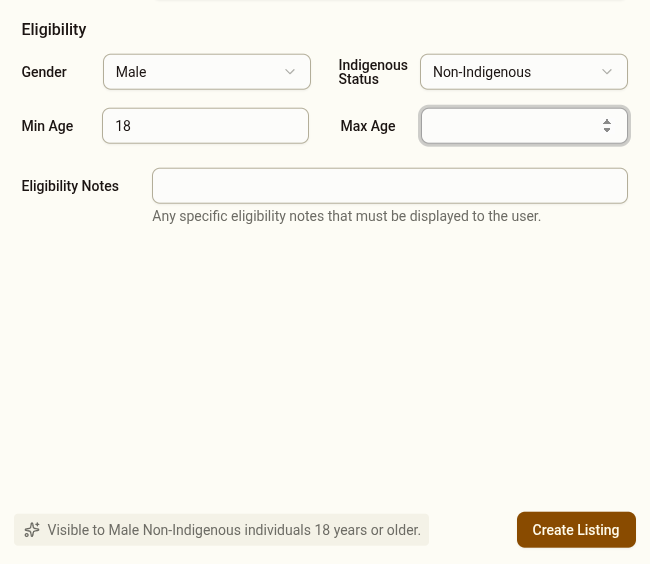
| Min Age and Max Age | You can leave one or both of these fields blank. If both fields are left blank then this listing will be displayed to clients of all ages. If this listing is to be displayed to adults only, then enter 18 as the Min Age and leave Max Age blank. If this listing is to be displayed to, say, young people between 16 and 25 then enter 16 as the Min Age and 25 as the Max Age. |
| Eligibility Notes | Add extra notes in this listing regarding eligibility criteria that are not covered by the Age, Gender and Indigenous status filters |
As you complete your filtering criteria the system will display a plain text summary of your criteria at the bottom of the screen.
Editing a Listing
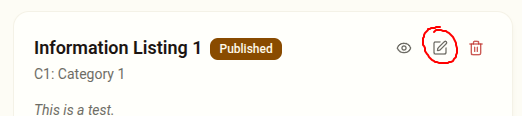
Section titled “Editing a Listing”Click the edit icon on a listing card to update any of the listing’s details. Changes take effect immediately and will be visible in the next session.
Publishing and Hiding a Listing
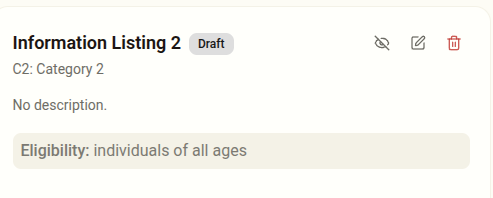
Section titled “Publishing and Hiding a Listing”By default when a new listing is created it is saved as a Draft.
Draft listings are not displayed on the Prisons Interface. This allows you to edit and finalise a draft and publish it when you are ready to do so.
To publish a listing you can either select the Published toggle in the Create Listing or Edit Listing Dialogs

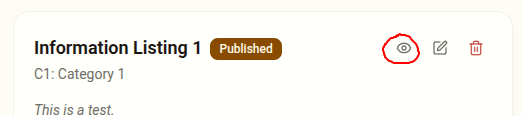
Or you can use the ‘Eye’ icon in the Listing card.
Deleting a Listing
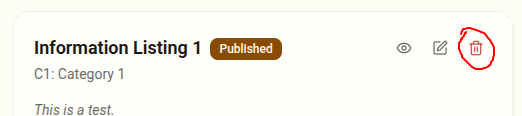
Section titled “Deleting a Listing”Click the delete icon and confirm. The listing will be removed from the system and will no longer appear to clients.
Booking Listings
Section titled “Booking Listings”Booking listings work the same way as information listings, but they also include appointment slots. See Managing Appointment Slots for how to add and manage slots.
A booking listing with no slots will not appear to clients in Step 4. Always add at least one upcoming slot after creating a booking listing.
- If a booking service is temporarily unavailable, consider removing the appointment slots rather than deleting the listing — this keeps the listing ready for when availability returns
- Likewise, you can also unpublish Information and Booking Listings if you want to hide them from the Prisons Interface temporarily.
- Review your listings regularly, especially after your organisation makes changes to programs or contact details