
Prison Staff Guide – Overview
The prison interface is designed to be used by a staff member sitting with a client — someone who is incarcerated or recently released — to help them identify relevant community services and book appointments.
The Session Workflow
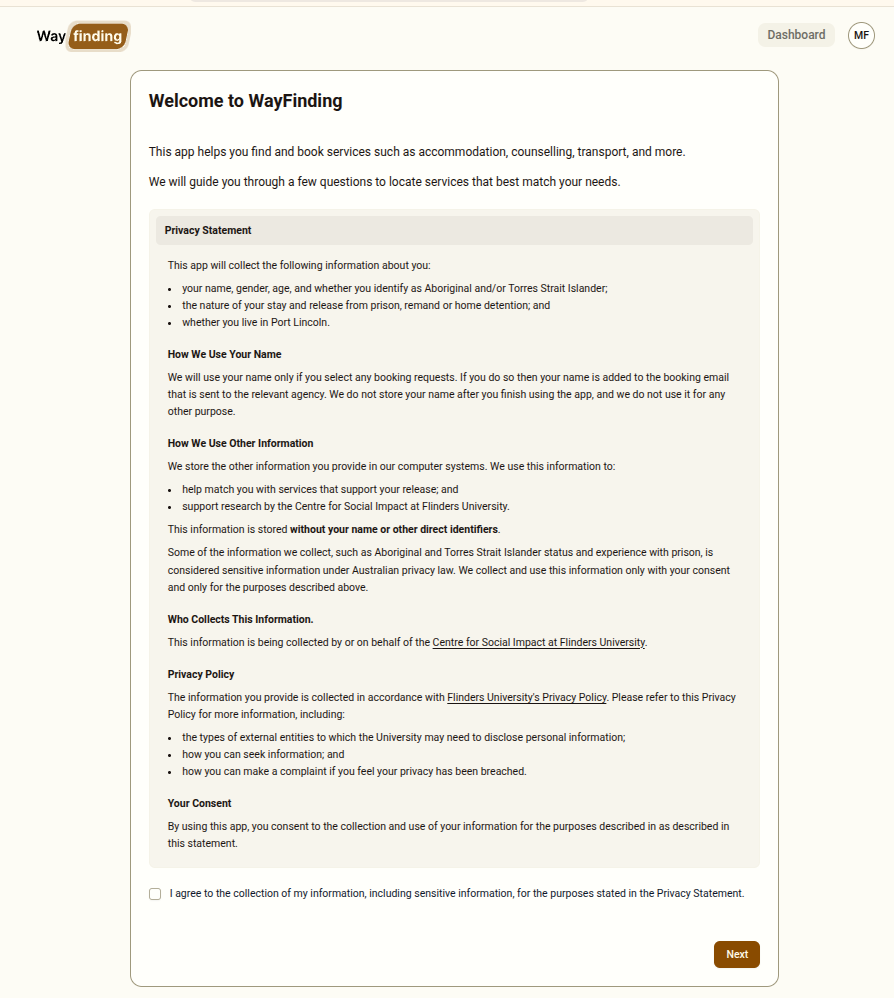
Section titled “The Session Workflow”The interface walks you through five steps in order. You cannot skip steps, and each step must be completed before moving to the next. You can go back to a previous step at any time using the Back button.
| No. | Step | What happens |
|---|---|---|
| 1 | Privacy & Consent | The client is informed about what data is collected and why. They must consent before continuing. |
| 2 | Client Demographics | Basic information about the client is collected to filter relevant services. |
| 3 | Category Selection | The client selects the types of services they are interested in. |
| 4 | Service Listings | Matching services are displayed. The client selects services to include in their printout or books appointment slots. |
| 5 | Review & Submit | All selections are reviewed before submitting. |
After submission, the system generates a print page summarising the selected services and appointments. This can be printed for the client to take with them.
Before You Begin
Section titled “Before You Begin”- Sit with the client at the computer or tablet
- Walk through each step together — do not complete steps without the client’s involvement
- The privacy statement on the landing page should be read with the client, and the client must agree to it
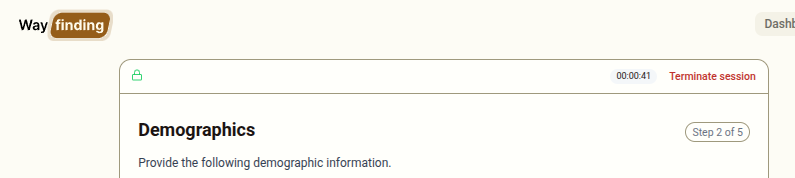
- A session timer in the top bar shows how long the session has been running
- An encryption indicator confirms the session data is protected — you can click it to see more detail
Key Things to Know
Section titled “Key Things to Know”- If no services match the client’s demographics, a fallback provider with general contact information will be shown
- You can terminate the session at any time using the button in the top bar — this cancels the session and records it as cancelled in the system
- Once you click Print and Send, booking confirmation emails are sent to providers and the session is logged