
Dashboard Overview
The dashboard is the management interface for administrators. It is accessed by logging in with your administrator account.
Main Navigation
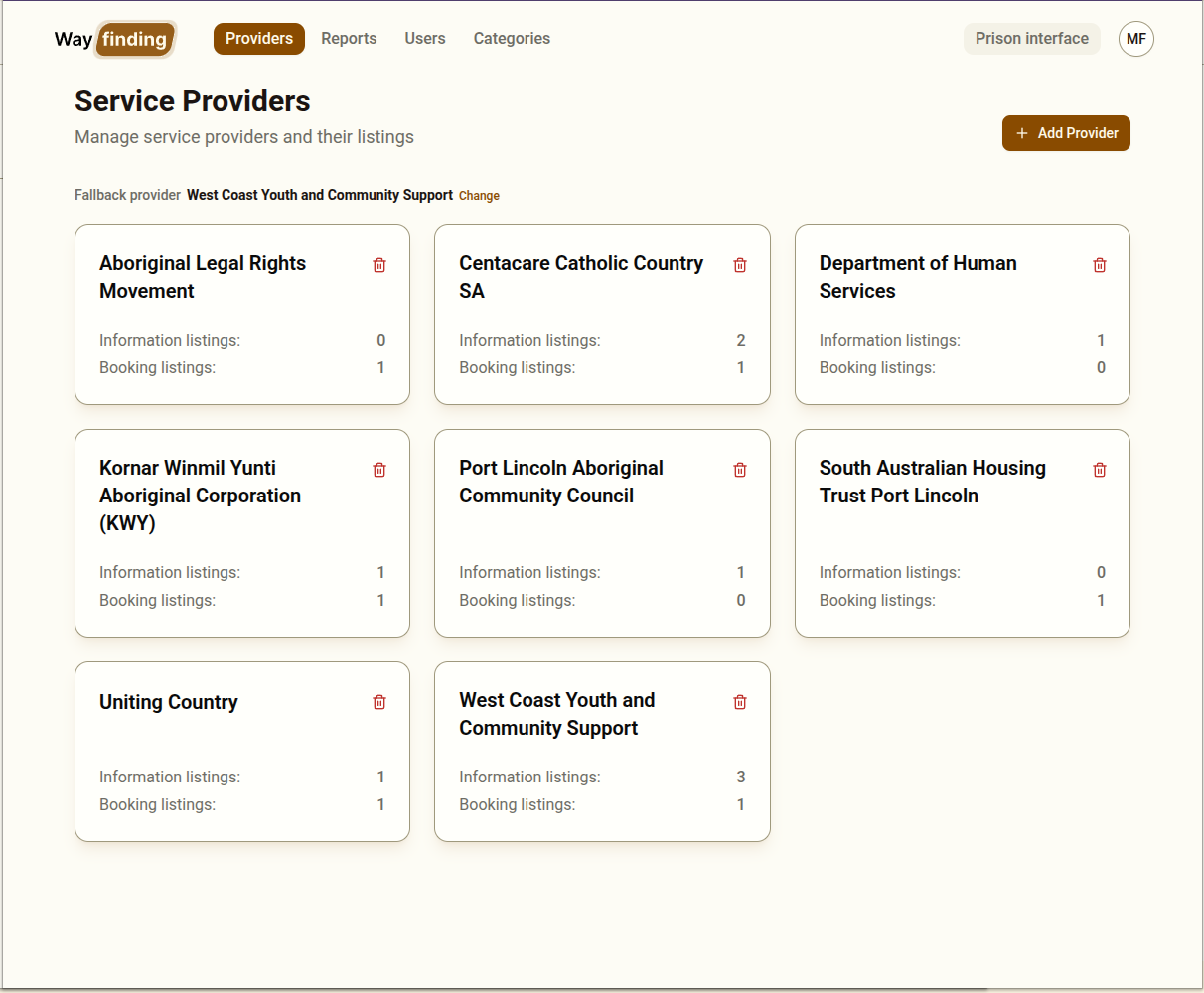
Section titled “Main Navigation”The top navigation bar gives you access to all sections of the dashboard:
| Section | Purpose |
|---|---|
| Providers | View and manage all service providers and their listings |
| Reports | Download session data as an Excel workbook |
| Users | Create and manage user accounts and their roles |
| Categories | Manage the service categories used to organise listings |
The Providers Section
Section titled “The Providers Section”The Providers section is where most day-to-day management happens. From here you can:
- See all providers in the system
- Create new providers
- Click into a provider to manage their profile, listings, appointment slots, and members
- Set the fallback provider
The Reports Section
Section titled “The Reports Section”The Reports section is where admin users and users with the appropriate access can download reports.
The Users Section
Section titled “The Users Section”The Users section is where user accounts are administered.
The Categories Section
Section titled “The Categories Section”The Categories section allows administrators to add, delete and update categories that are allocated to Information and Booking Listings.
Switching to the Prison Interface
Section titled “Switching to the Prison Interface”A quick link in the navigation allows you to switch between the dashboard and the prison interface. Use this to test the workflow from a prison staff perspective, or to help a client if you are present in the facility.
Your Account
Section titled “Your Account”Your name and role are displayed in the navigation. If you need to change your password or account details, contact your system administrator (or your hosting provider if you are the sole administrator).