
Managing Users
The Users section allows administrators to create and manage accounts for all dashboard users — both administrators and provider members.
Account Creation and Authentication
Section titled “Account Creation and Authentication”User accounts can only be created by invitation. An administrator must create each user account; users cannot self-register.
This is a deliberate part of the system’s security model. Restricting account creation ensures that access is granted only to authorised individuals whose identity and role have been verified before access is provided.
Once an account is created, the user’s email address cannot be changed. The email address acts as a stable, unique identifier for the account and is relied upon for authentication, audit logging, and access control. Preventing email changes reduces the risk of impersonation, account takeover, and ambiguity in audit records.
The system does not authenticate users using passwords. Instead, users sign in using a one-time code or secure ‘magic link’ sent to their registered email address.
This approach removes common password-related risks such as weak passwords, password reuse, credential theft, and phishing, while ensuring that access is tightly coupled to a verified and immutable email address.
Viewing Users
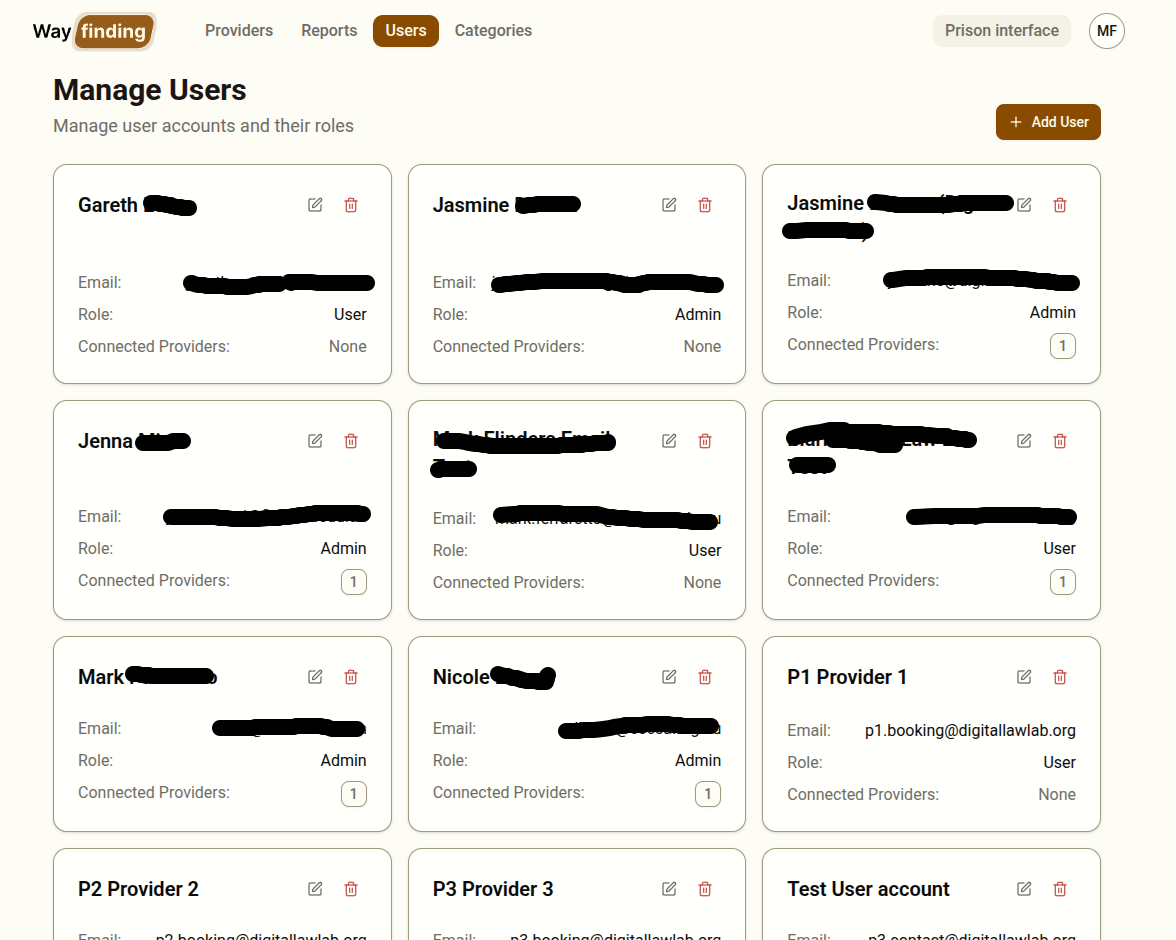
Section titled “Viewing Users”Navigate to Users in the sidebar. You will see a grid of user cards, each showing:
- The user’s name and email address
- Their role (Admin or User)
- The providers they are assigned to
Creating a User
Section titled “Creating a User”- Click Add User
- Fill in the user details:
- First name and last name
- Email address — this will be their unique account identifier
- Role — choose Admin for full access, or User for provider-level access
- Optionally assign the user to one or more providers at creation time
- Click Save
The user will receive an invitation email with a link or one-time code allowing them to log in.
Admin — full access to all dashboard features including all providers, users, categories, and reports.
User — limited to the providers they are assigned to. Cannot access categories, other users, or reports unless the report permission is granted.
Granting Report Access to a User
Section titled “Granting Report Access to a User”By default, users with the User role cannot access the Reports section. To grant report access:
- Find the user in the Users grid
- Click on the Edit button to edit the user
- Check the Allow access to reports permission
This allows the user to download session data without giving them full administrator access.
Assigning Providers to a User
Section titled “Assigning Providers to a User”Providers can be assigned to a user at creation time, or added later through the Members tab on a provider’s detail page.
A user with no providers assigned will see an empty dashboard when they log in. Always assign at least one provider after creating a user account.
Deleting a User
Section titled “Deleting a User”Click the delete icon on a user card. You will be asked to confirm. Deleting a user removes their account and all provider assignments. This action cannot be undone.